
Table of contents
Before you start
Theme demo: https://thethemenook.com/solana/
Theme requirements
This theme can only be installed on self-hosted WordPress websites. This typically includes:
- A subscription to a web hosting service.
- A domain name, and
- The free WordPress software installed.
You’ll also need the free Fashion Nook parent theme (included with your purchase). You don’t need to activate it, it just needs to be located in your themes folder. It’s included with your purchase and you can also get it from WordPress.org.
Theme Files
Your purchase will include the following files:
- solana.zip — zip folder containing the theme. The name might include numbers, which stand for version number and might change in the future.
- fashion-nook.zip – zip folder containing the parent theme.
- solana-data.zip — zip folder with the import data.
- A quick start PDF doc.
✦ TIP: Do not open the .zip archive files – you’ll need to upload it to your WordPress site as-is.
Theme Installation
The simplest way to install a theme is from your WordPress dashboard. Here you can find the step by step instructions:
Installing the parent theme
- Login to your WordPress Dashboard and go to Appearance → Themes.
- Click Add New at the top of the page, and then Upload theme.
- Click Choose file and locate the fashion-noook.zip file (parent theme) on your computer.
- Click Install Now, but do not activate.
Installing the Solana theme
- In your WordPress dashboard, go to Appearance → Themes.
- Click Add New at the top of the page, and then Upload theme.
- Click Choose file and locate the solana.zip file on your computer.
- Click Install Now, but do not activate.
- Click Activate.
Congrats, your theme is now installed and activated! 🎉
Install and Activate WooCommerce
If you haven’t already done so, now is a good time to install the WooCommerce plugin.
- Go to Plugins → Add New and search WooCommerce.
- Click Install Now → Activate.
- If Woo’s setup wizard appears, you can skip for now—we’ll come back after the demo import.
Install Recommended plugins
Solana includes subtle animations on the home page (each section has a gentle fade-in effect), which require a free Blocks Animation plugin. After the plugin is installed and activated, the animations will start working automatically. You can remove or further adjust them while editing the homepage template.
The animated notification at the top of the site is powered by the free Marquee Block, available from WordPress.org. Simply install and activate the plugin, and the message above the header will automatically start moving across the top of the screen. You can edit the message and animation settings while editing the homepage template.
Import the demo data
I recommend you to use a fresh WordPress installation for importing demos. While import process will not remove or overwrite any of the existing content on your site, it might make it harder to find and remove it when you’re getting your site ready for launch.
To import example blog posts, pages, categories, and images used in the demo, follow these steps:
- Install and activate the Advanced Import plugin from the plugin directory.
- Go to Appearance → Demo Import.
- Upload the solana-data.zip and click Upload Demo Zip.
- Wait for the import process to finish.
- Visit your homepage. It should now show the demo blog posts.
Theme Setup
Set your homepage
Visit Settings → Reading, and under Your homepage displays, select Your latest posts.
Customize your homepage
This theme uses the default block editor (aka Site Editor). You will use the Site Editor to make changes to every aspect of your site’s content and layout. In the Site Editor, you can change your site’s styles, including colors and fonts, homepage and template designs, and edit your website’s menus.
To open the Site Editor, follow these steps:
- Visit your site’s dashboard.
- Navigate to Appearance → Editor.
✦ TIP: If you need extra guidance on how to use WordPress’ built in Site editor, you can check out this official tutorial.
Editing the homepage
To edit the homepage template:
- Visit your site’s dashboard.
- Navigate to Appearance → Editor.
- The preview on the right had side should be showing your homepage. Simply click on it to start editing.
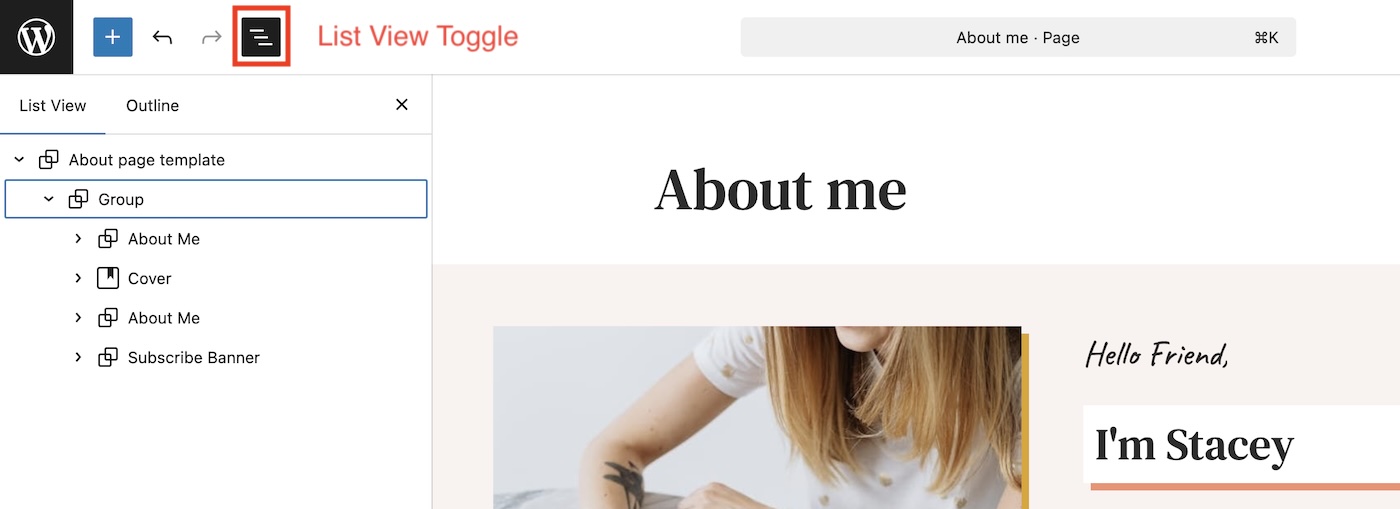
✦ TIP: Turn on List View (recommended) – click the List View icon (top left) to see each section by name. It makes selecting the right part much easier.
✦ TIP: Always save your changes
Click Save (top right). The dialog may list multiple items (template, template parts). Keep them all checked and confirm. Make sure to save your work at regular intervals.
Updating Site Header and Footer
This theme uses template parts for the Header and Footer. When you edit a template part once, the change applies site-wide (it will be applied on every page that uses it).
There are two ways to edit Header/Footer:
- Edit directly from Template Parts:
- Navigate to Appearance → Editor → Patterns → Template Parts and click on the Header/ Footer pattern on the right.
- Make your changes and hit Save.
- This updates the Header/Footer everywhere it’s used.
- Edit in context (while viewing a page or template):
- Navigate to Appearance → Editor → Templates → Blog Home (or any page template) → click the Header (or Footer) → choose Edit in the little toolbar.
- You’ll enter an “isolated” view of that template part.
- Make your changes and hit Save.
Editing the Header
The header contains Logo, Site Title, and Navigation blocks. To edit:
- Open Appearance → Editor → Patterns → Template Parts → Header and click on the Header pattern.
- Click the Site Title block → type your website name. This will update your site name site-wide (wherever Site Title block is used and in WordPress settings).
- Save (top right). You may see multiple items to save—keep them all checked.
✦ NOTE
This theme comes with two headers:
- Homepage Header, displayed only on the homepage, inside the hero section.
- Header, used on all other pages.
Updates made to Site Title and Logo blocks with automatically be reflected in both header patterns, but the Navigation block will have to be manually configured to use the same nav menu in each.
Setting up the navigation
By default, the header shows a Page List (it auto-lists your published top-level pages).
To keep it automatic: Do nothing. As you add pages, the menu will be updated.
To hand-pick links (custom menu):
- Click the Navigation block (you’ll see the blue outline around the menu).
- In the right sidebar, click on the three vertical dots icon (⋮) and select Create new menu (or select an existing menu if one already exists).
- Click + to add items (Pages, Links, or Categories).
- Drag to reorder and create sub menus.
- Save (top right). You may see multiple items to save—keep them all checked.
Editing The Footer
Your footer combines editable text and two custom navigation menus:
- Site title on the left. Updating it in the footer will change the site name everywhere.
- Two navigation menus on the right. Each item is a custom link. To edit, click on each link and update the Text and Link options in the right toolbar.
- Save (top right). You may see multiple items to save—keep them all checked.
Customizing Fonts And Colors
Using provided style variations
This theme comes with additional custom color and font combinations.
There are two ways to access them:
- Go to Appearance → Editor → Styles → Browse styles. Click on the available presets to see the preview immediately update. You can combine a custom color and custom font present (have one of each active).
- You can also access Styles while editing within the Site Editor by clicking the Styles icon at the top-right (the icon looks like a black and white circle split in half).
You can further adjust the colors to match your brand. To do that, navigate to Appearance → Editor → Styles → Colors, and click on “Edit palette”. This will allow you to make global changes to the site’s colour scheme.
Similarly, you can adjust the fonts on your site by going to Appearance → Editor → Styles → Typography. From there you’ll be able to add more fonts, and change the fonts for global elements like headings, text, buttons, etc.
Each time you make a change, be sure to save your progress.
Resetting custom fonts and colors
You can remove all custom styles you’ve applied and return to your theme’s default appearance. This is especially helpful if you want to start fresh. Here’s how:
- Visit your site’s dashboard.
- Go to Appearance → Editor.
- Click the preview on the right to open the Site Editor.
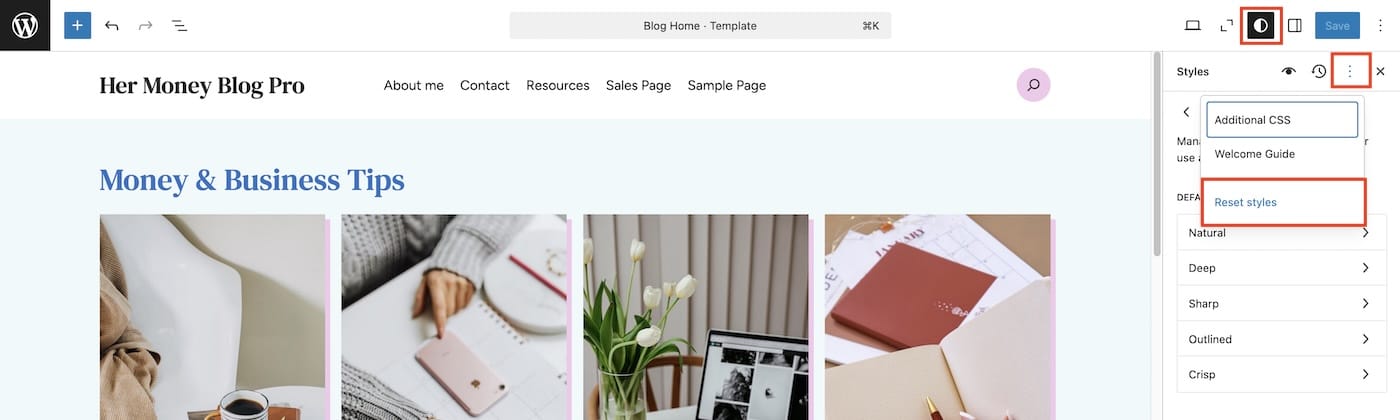
- Click the Styles icon (a black and white circle split in half) in the top toolbar.
- In the Styles panel that appears, click the three dots menu (⋮) and select Reset styles.
This resets all your Typography, Colors, and Layout changes. Only style settings are reset, not changes to content or site settings.
Using extra patterns
This theme comes with extra patterns that you can mix and match to create new page layouts or customize the existing ones.
You can see all the custom patterns in one place when you navigate to Navigate to Appearance → Editor → Patterns, under the Featured category.
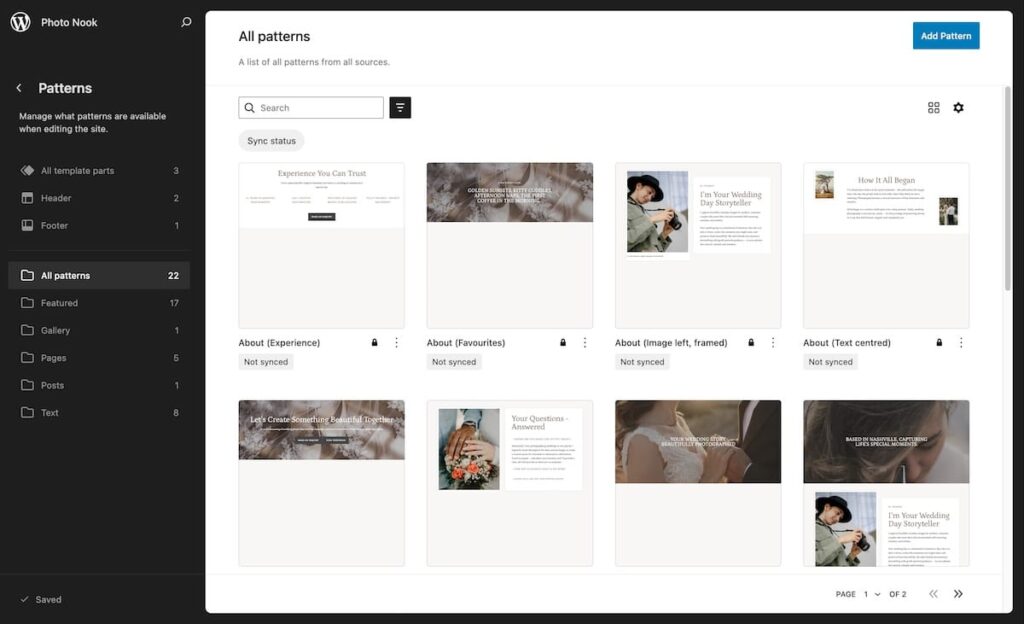
To insert a pattern into a post or a page, on the post edit screen, click on the Add Block [+] button to open the block inserter. From here, switch to the ‘Patterns’ tab to view available block patterns grouped by category. All the custom patterns and layouts that come with this theme will be in the Featured category.