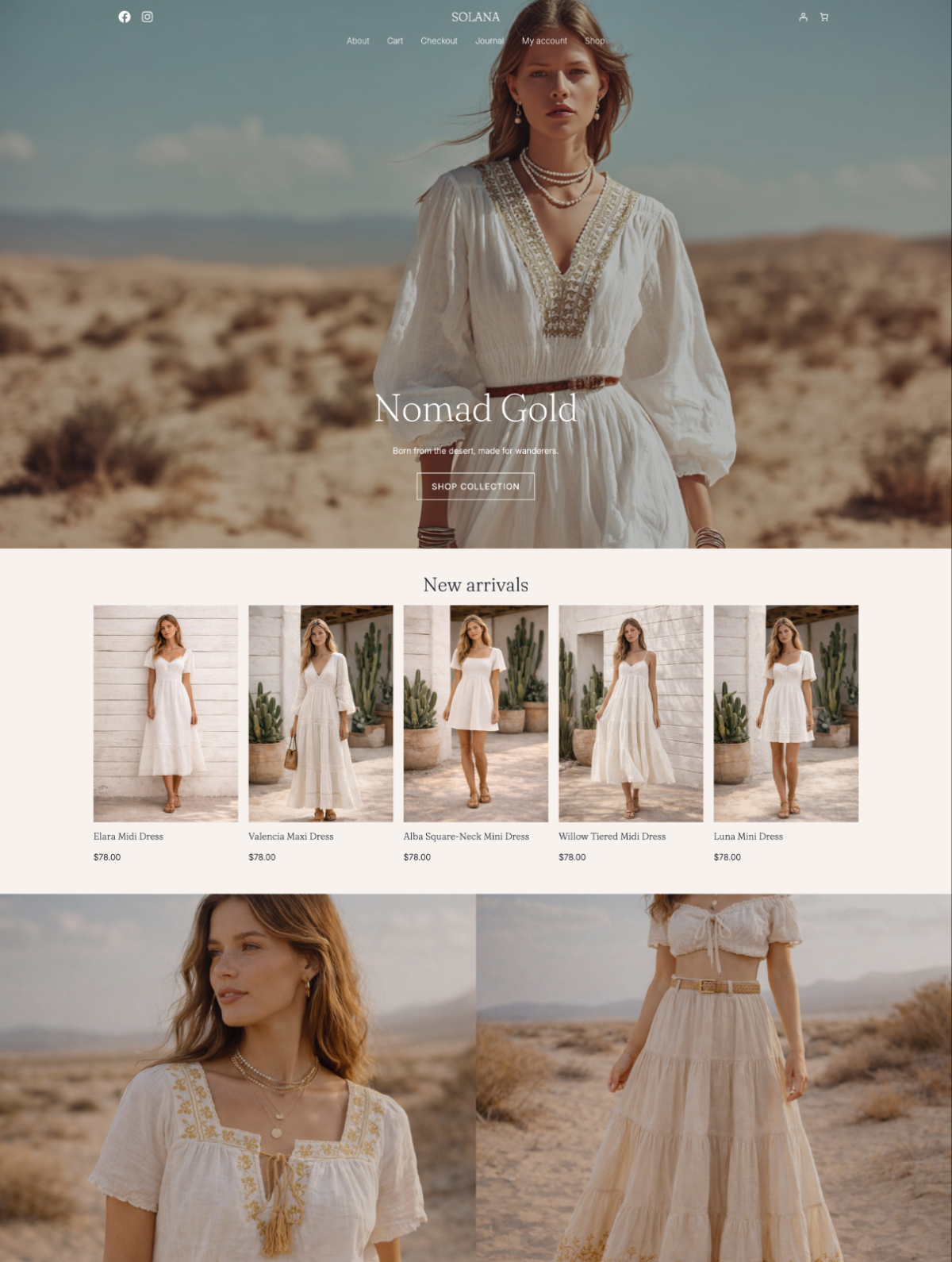
Your fonts are a huge part of your brand. They set the tone, the vibe, the personality of your site (just like your packaging or product photos do).
And while most WordPress themes include a few decent font options (usually Google Fonts), there’s something special about using your font — the one that’s already in your logo, your labels, or your Canva templates.
The good news? You don’t have to hire a developer or rebuild your theme to add custom font to your WordPress site.
In this post, I’ll walk you through a few different ways to install a custom font — especially a paid or licensed one — and make it work with your WordPress site (even if you’re not very techy).
Why use a custom font?
Swapping in a custom font is one of the easiest ways to make a WordPress theme feel more like you — even if you’re using a pre-designed template.
It instantly elevates the design, adds personality, and helps your site match the rest of your brand (especially if you’re using the same font on packaging, labels, or social graphics). And luckily, WordPress makes it super easy to add new fonts.
Let’s dive in!
Where to buy a custom font
If you’re still searching for the right font, here are a few places I recommend:
- CreativeMarket.com offers a wide range of beautiful fonts, often from independent designers. Great for elegant, modern, or boho vibes and my go-to place to find fonts.
- MyFonts.com. Huuuuge selection from major foundries. Ideal if you’re looking for something specific or high-end.
- Etsy. Lots of unique handmade fonts. Just double-check that they include a web license!
- TheHungryJPEG. Affordable bundles and playful/handwritten styles.
Make sure you purchase a web license (or self-hosting license) if you plan to install the font on your website. A desktop license is usually for design software use only (like Canva or Illustrator), and doesn’t allow you to embed the font in your site files.
Adding Custom Font to WordPress’s via Global Styles
If you’re using a block theme (like the ones I design), WordPress now has a built-in way to upload and use custom fonts — no plugins or code needed.
Here’s how to add a custom font using Global Styles:
- Purchase and download the font to your computer. It will likely come in a .zip file, so go ahead and unzip it.
- From your WordPress dashboard open the Site Editor (Appearance → Editor).
- Click on Styles on the left.
- In the editor, you can also select the Styles icon in the upper-right corner — the button looks like a black-and-white circle.
- Select the “Typography” option.
- Click the “Manage Fonts” button, which looks like two horizontal lines with dots on them.
- Click the “Upload” tab. Click the “Upload font” option to browse for your font files. Locate and open the supported font files (Supported formats: .ttf, .otf, .woff, and .woff2).
- Once the font is successfully installed, it will appear in your Library under “Installed Fonts”.
Note: this only works with true block themes. If you don’t see the “Add font” option, your theme might not support it yet.
Once your font is successfully uploaded, you can use it in your site headings and text.
- In the Site Editor (Appearance → Editor), click on Styles on the left.
- Scroll down to “Elements” table.
- To update global headings font, click on Headings and pick your new font from the drop down list.
- By clicking on individual heading levels (H1, H2, etc.) you can further adjust settings like font size, letter-case, etc.
- To update global text font, click on Text and pick your new font from the drop down.
- Your new font settings should be immediately visible in the site preview on the right.
- Remember to click the Save button in the bottom left once you’re done.
Adding a custom font to your WordPress site might feel like a small detail — but it can make a huge difference in how polished and “on-brand” your site feels.
Try it out for an instant site glow up!